
A white screen on Yanhua ACDP II App is typically caused by loading errors, application freezes, or network interruptions. The most effective solutions include force-closing and restarting the app, clearing the cache, checking for updates, or reinstalling the application.
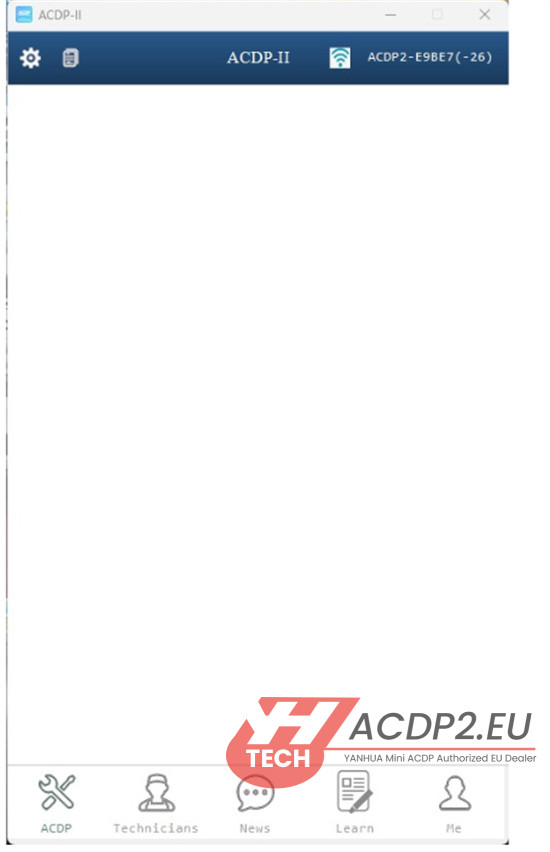
Below are specific troubleshooting steps for Mini ACDP App on various platforms.
1.Restart the Application
Completely close the app on your Android or iOS device, then relaunch it.
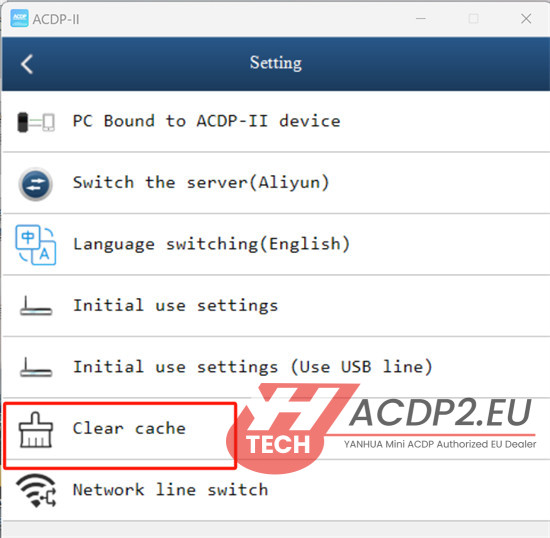
2.Clear App Cache
Navigate to the app’s “Setting” menu and select “Clear Cache”.
3.Verify Network Connection
If using WiFi, ensure the signal is stable.
Avoid overly long WiFi network names, as these can cause connection failures that may result in a white screen.
4.Reinstall the Application
Uninstall the current version of ACDP app.
Download and install the latest version from the official Yanhua website, App Store, or Google Play.
5.Check Adapter Connections (BAV Key Programming)
If the white screen occurs during BAV key programming, disconnect BAV-key adapter and reconnect it securely to Mini ACDP device.
6.Update Runtime Environment (PC Version)
For users running ACDP-2 software on a PC, verify that the required runtime environment (e.g., .NET Framework) is properly installed.
7.Check Device System Updates
If the issue persists on mobile, check for any pending Android or iOS system updates and install them if available.
Tech support:
E-mail: Sales@ACDP2.EU
Whats app: +8618054815707(Erin)