Problem:
One customer transferred Yanhua ACDP1 license to ACDP2 device. When he used ACDP2 to work with PC software, it failed to connect.


ACDP2.EU engineer replied:
Please operate using the method below:
Step 1: Bind Mini ACDP2 and Android cellphone via hotspot (non-scanning device)
Step 2: Connect computer to the same Wi-Fi as your phone
Unbind ACDP-2 and cellphone, and then bind to PC automatically
In detail…
Step 1: Bind Mini ACDP2 and Android cellphone via hotspot (non-scanning device)
1.Set on cellphone
Go to App management- Mini ACDP-permissions
Location: select “While using” or “Allow all the time”

Select “Bluetooth”
Turn on “Bluetooth” icon
Do not turn on Wi-Fi!

Select Connection & sharing-> Personal hotspot-> Personal hotspot settings
Keep the hotspot name and password as simple as possible
AP band: select 2.4 GHz band
Turn on “Visible to other devices”

Select Connection management-> Data restriction-> Unrestricted
Do not open this icon “Automatically turn off personal hotspot when idle”

2.Initial use settings on ACDP APP
Run Mini ACDP APP
Click “setting” in the upper left corner
Select “Initial use settings”
Make sure Bluetooth and location services are turned on
When there is no “scan” mark on the back of the ACDP host, click “No”

Follow the instruction below to operate
- First open Bluetooth.
- The mobile phone is connected to the WiFi and confirm it has access to the Internet.
- ACDP hardware access power.
- Long press the SET button on the ACDP device about 7 seconds, unbind the device’s buzzer sounds, then release the “SET” button.

Select Yanhua Mini ACDP device your need to connect in the list
Input the WiFi name and PSW
Click “Start configuration”

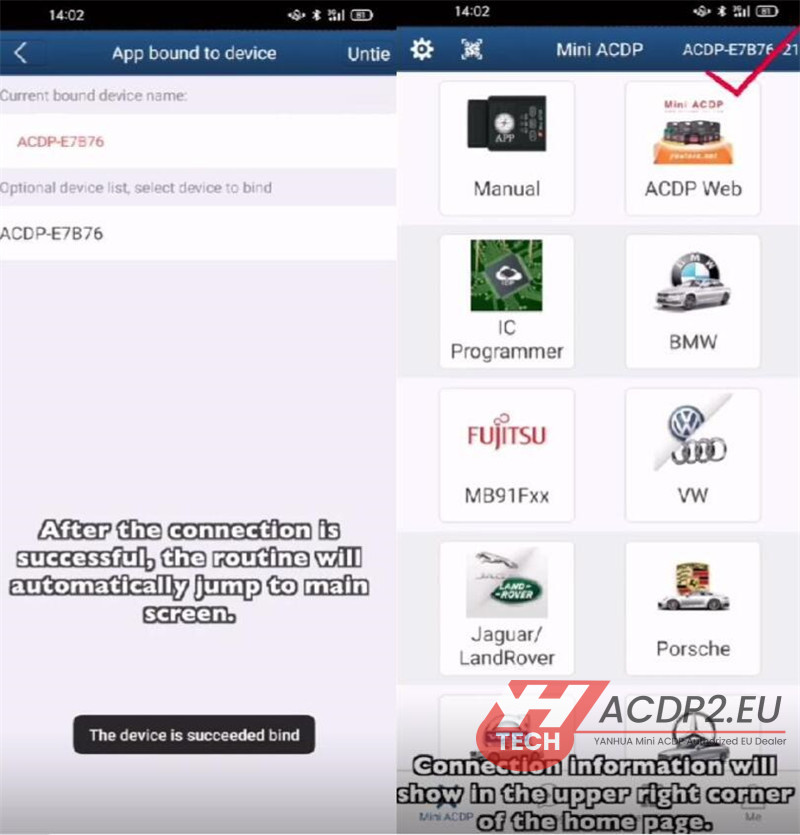
The device is succeeded bind.
After the connection is successful, the routine will automatically jump to main screen
Connection info will show in the upper right corner of the home page
Video guide:
Step 2: Unbind ACDP-2 and cellphone, and then bind to PC automatically
1: Unbind cellphone
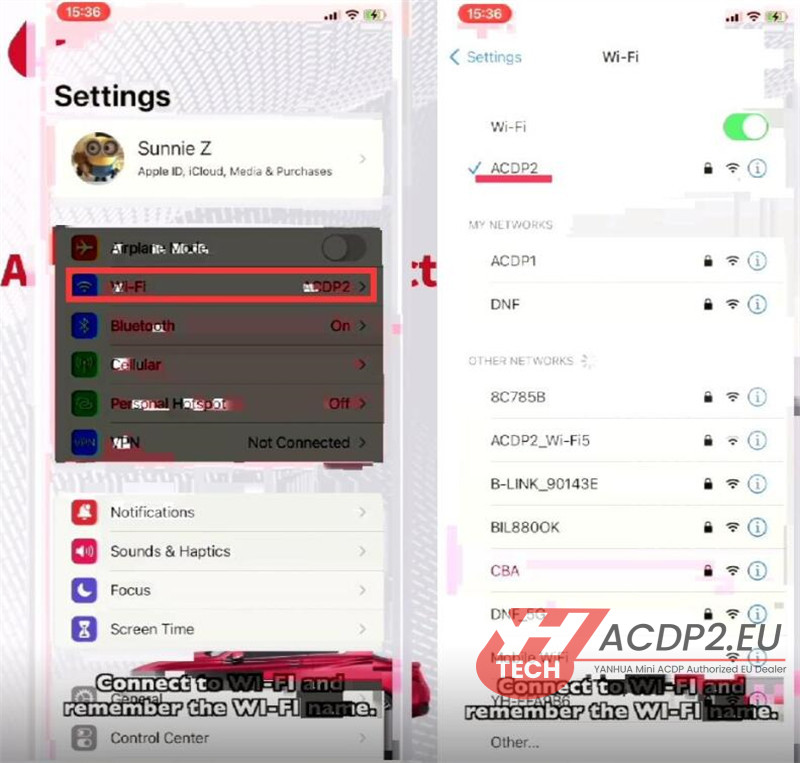
Go to “Settings” on the mobile phone
Connect to Wi-Fi and remember the WiFi name
Run Mini ACDP APP
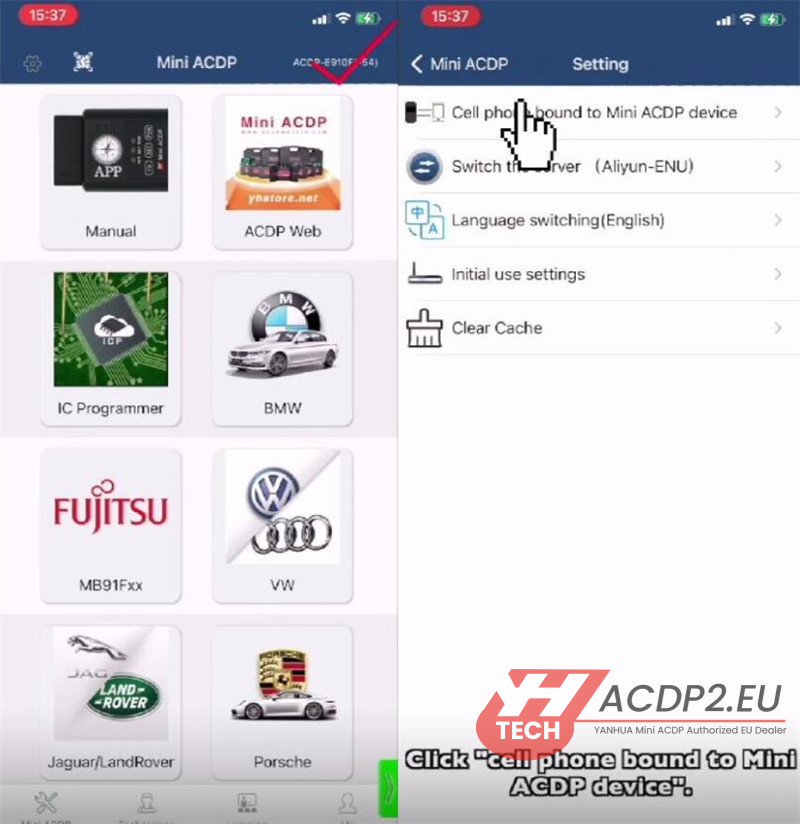
Make sure the device is bound
Click “setting” in the upper left corner
Click “cell phone bound to Mini ACDP device”
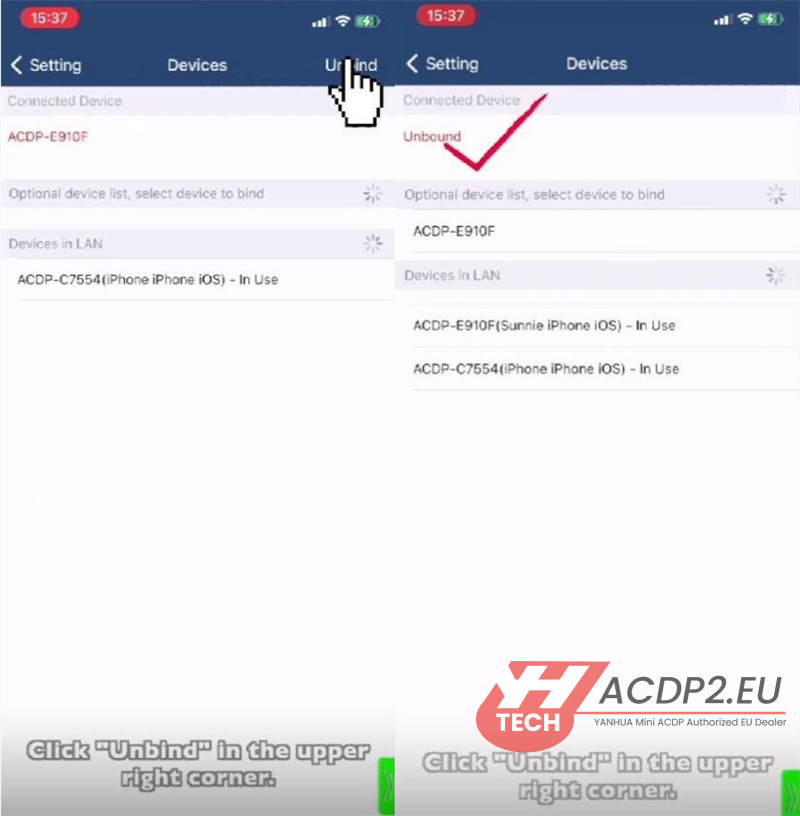
Click “Unbind” in the upper right corner
2: Bind PC
Make sure your computer is connected to the same Wi-Fi as your phone
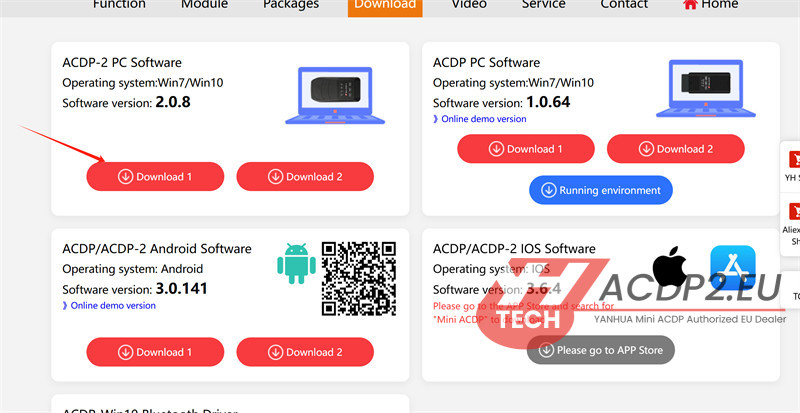
Download ACDPII software
Access to https://www.acdpmaster.com/en/download.html
Find ACDP-2 PC Software and click “Download 1” to download directly
Operating system: Win7/Win10
Software version: 2.0.8
Start ACDP APP on the desktop
Click “setting” in the upper left corner
Click “PC bound to Mini ACDP device”
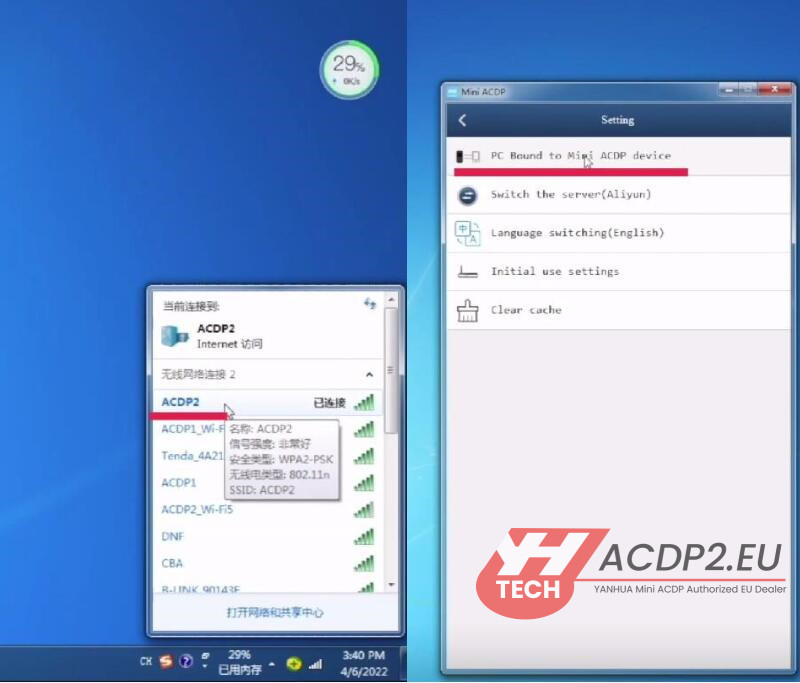
Select the right device ID
After bind successfully, device info will show in the upper right corner of the home page

Video guide: